favicon:-
A favicon is a small image displayed next to the page title in the browser tab. You can use any image you like as your favicon. You can also create your own favicon on sites like https://favicon.cc. Tip: A favicon is a small image, so it should be a simple image with high contrast.
(ex)–
<link rel="icon" type="image/x-icon" href="/images/favicon.ico"><mark>
The <mark> tag in HTML is used to define the marked text. It is used to highlight the part of the text in a paragraph.
(ex):-
<mark>Highlight</mark>
<img>
The <img> tag is used to embed an image in an HTML page. Images are not technically inserted into a web page; images are linked to web pages. The <img> tag creates a holding space for the referenced image. The <img> tag has two required attributes: src – Specifies the path to the image.
(ex):-
<img src="img_girl.jpg" alt="Girl in a jacket" width="500" height="600"> <title>
The <title> tag defines the title of the document. The title must be text-only, and it is shown in the browser’s title bar or in the page’s tab. The <title> tag is required in HTML documents! The contents of a page title is very important for search engine optimization (SEO)!
(ex):-
<title>Hello </title>Container Elements:-
The container tags are tags that have some content between their opening and closing tags. Some examples are the <html> , <head> , and <body> tags. The <html> tag is used to contain all other tags that make up your webpage. The <head> tag is used to add meta information to your webpage that will be used by the browser.
<iframe>
Definition and Usage. The <iframe> tag specifies an inline frame. An inline frame is used to embed another document within the current HTML document.
<iframe src="https://www.amazon.com" title="Purchase"></iframe> poster:- attribute
The poster attribute specifies an image to be shown while the video is downloading, or until the user hits the play button.
<video controls poster="/abcd.gif">Raster image:-
Raster (or bitmap) images are described by an array or map of bits within a rectangular grid of pixels or dots. Vector images are described by lines, shapes, and other graphic image components stored in a format that incorporates geometric formulas for rendering the image elements.
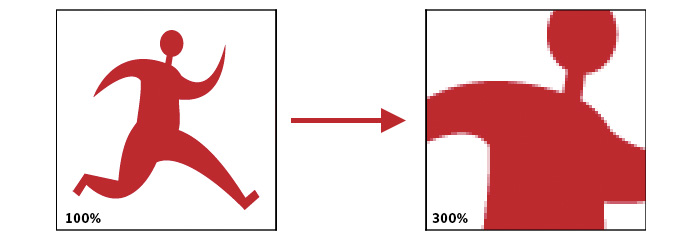
Examples of raster image file types are: BMP, TIFF, GIF, and JPEG files.
Vector image:-
The vector image is created by defining points and curves. When vector graphics are scaled, the edges remain crisp and sharp no matter the size.
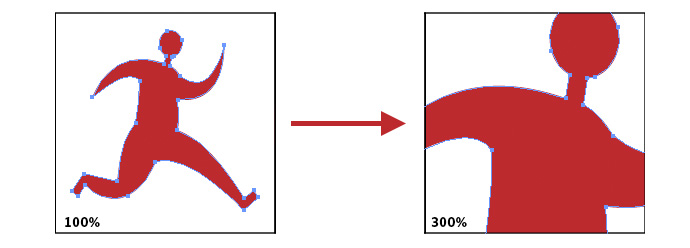
Examples of vector graphic formats are PICT, EPS, and WMF as well as PostScript and TrueType fonts.
<svg>
SVG is a language for describing 2D graphics in XML. Canvas draws 2D graphics, on the fly (with a JavaScript). SVG is XML based, which means that every element is available within the SVG DOM. You can attach JavaScript event handlers for an element.
(ex):-
<svg width="100" height="100">
  <circle cx="50" cy="50" r="40" stroke="green" stroke-width="4" fill="yellow" />
</svg>
Tables tags:-
| Tag | Description |
|---|---|
| <table> | Defines a table |
| <th> | Defines a header cell in a table |
| <tr> | Defines a row in a table |
| <td> | Defines a cell in a table |
(ex):-
<table>
<tr>
<th>Hii</th>
<td>welcome</td>
</tr>
</table>
<br>
The <br> tag inserts a single line break. The <br> tag is useful for writing addresses or poems. The <br> tag is an empty tag which means that it has no end tag.
(ex):-
<p>Hello Welcome</p><br>--Next lineCheckbox:-
The <input type=”checkbox”> defines a checkbox. The checkbox is shown as a square box that is ticked (checked) when activated. Checkboxes are used to let a user select one or more options of a limited number of choices. Tip: Always add the <label> tag for best accessibility practices!
Radio buttons:-
The <input type=”radio”> defines a radio button. Radio buttons are normally presented in radio groups (a collection of radio buttons describing a set of related options). Only one radio button in a group can be selected at the same time.
<select>
The <select> element is used to create a drop-down list. The <select> element is most often used in a form, to collect user input. The name attribute is needed to reference the form data after the form is submitted (if you omit the name attribute, no data from the drop-down list will be submitted).
References:-
1)https://www.w3schools.com

